So you’ve been told to leverage AI in your workflow, but most of the advice is generic: write better prompts and ask better questions.
That’s not an answer when you have 50 accounts to manage or an upcoming QBR. Here’s the answer to excelling at AI without spending all of your waking hours on it: Claude Cowork.
Claude Cowork is included in the desktop version of Claude and can do much more than just respond to your questions and generate content. It can actually manipulate files on your computer, create and save files, schedule tasks, and interact with your browser.
This guide walks you through configuring Claude Cowork specifically for Customer Success work, from your first project setup to the reusable workflows for the tasks that eat up most of your week. Read on for sample prompts, example workflows, and plenty of inspiration for how AI can speed up some of your most time-consuming tasks.
What Is Claude Cowork and Why Should CSMs Care?
You’re probably familiar with the “all-purpose” Claude, a chat-based web app from Anthropic. Claude for desktop offers three “modes” to choose from when interacting with Claude:
- Chat (similar to Claude in the browser)
- Cowork (we’ll cover this in-depth)
- Code (an AI-powered coding agent)
While Claude Chat, Cowork, and Code overlap in what they can do for you, there is a key difference between the three offerings. Yes, Claude Cowork can chat with you, but it can also do work on your computer.
One of the core limitations of Claude Chat is the limited context; there’s only so much information Claude can access in its context window for any given task. Claude Cowork has access to all the context needed to deliver reliable, effective output. If you can export Gong recordings, HubSpot records, product usage statistics, and the last 6 months of support tickets for an account, then you can get the data needed to predict churn, spot upsell opportunities, and forecast revenue in a matter of seconds.
Cowork can also create files for you. If you want a printout of your biggest churn risks with freshly calculated health scores in a CSV, Claude Cowork can do it. If you want to pull customer insights into a QBR deck, Claude Cowork can do that too.
Perhaps one of the biggest advantages of Cowork, though, is the ability to schedule regular tasks to run on your computer. Cowork allows you to schedule tasks to run at set intervals or on demand, giving you a personal assistant right on your laptop. These tasks can include daily briefings, weekly updates, or monthly reports – the sky (and your imagination) is the limit.
Read on for a step-by-step process to set everything up.
How to Set Up Claude Cowork for Customer Success Workflows
The “blank page syndrome” of thinking you can automate anything and everything is real, so don’t let the initial overwhelm scare you off.
Just follow these four simple steps:
- Install Claude on your desktop
- Create a dedicated project for your CS work
- Write your project instructions
- Create your “brain file”
- Start prompting or schedule a task
Install Claude Desktop and Find Cowork
First things first, you need to download Claude to your computer. Head to claude.com/download to download for Mac or Windows.
Cowork is available on paid plans (Pro, Max, Team, Enterprise); unlike the web version of Claude, you will need a paid plan to access Cowork. Claude also offers a number of extensions to download, notably for Chrome, Slack, Excel, and Word, as well as the ability to download Claude to your phone.
You can go through these steps too, but they’re not necessary right off the bat.
Create a Project for Your CS work
While you could bravely charge ahead into the deep end of the pool, we recommend taking some time to organize your workspace with a project first.
Projects are persistent workspaces with their own files, instructions, and memory.

When creating a Project, Claude will prompt you to either select an existing folder or create a new one on your computer. Go ahead and create a new project and folder. Next, we’ll walk you through creating the project instructions to guide Claude.
Write Your Project Instructions
There are two ways to instruct Claude Cowork on how to operate:
- The project instructions, which we’ll cover here
- The “brain” file, a markdown file you’ll create in the next step
Project instructions are the prompt Claude sees at the start of every session in this project, so they should describe who you are, what you do, and how you think.
The sky’s the limit for what to set as your instructions, but we recommend starting with:
- Your role
- Your focus areas
- Your KPIs
- Your working style
For example, a simple instructions file might contain something like this:
I am a B2B Customer Success manager working with 40 mid-market accounts. My focus areas are retention, expansion, and product adoption. The company I work for sells Customer Success software; our customers can use it to manage their customers and automate workflows at scale. When I share customer data, I treat it as confidential. Default to direct, practical answers. When you draft customer-facing communication, match a friendly-but-professional tone, no jargon, no "circling back." If you don't have enough context to answer well, ask me a focused question before producing output.
You should feel free to customize your project instructions to match your exact workstyle and role.

Paste your instructions into Claude Cowork’s UI to provide the necessary context. Next, we’ll get hyper-specific by creating a brain file.
Build a Brain File
We promise, this is the only technical step in the setup process!
The final step is to create your “brain” file – a markdown file that lives in the project folder – to give Claude the full context for your project. This is where you get hyper-specific. Include things like:
- ICPs
- Top accounts
- CS playbooks
- Renewal cadence
- Escalation path
- Your product
JJ Englert (Community Lead at Tenex) gave an in-depth tutorial on how to automate your workday without needing to write a single line of code on “Lenny’s Newsletter.” His take on the brain file is to break it down into working preferences, company background, job functions, and more, to give Claude the full context it needs to consistently deliver high-quality outputs.
This is where Cowork truly levels up over Claude chat. CSMs often maintain persistent threads for specific functions, but those threads quickly lose context; with a good brain file, Cowork maintains that context each time you go back to it with a task.
But more so than that, when you're chatting with Claude and carefully crafting a prompt, the system behind Claude in the browser is injecting its own CLAUDE.md prompt at the very start of the conversation to guide Claude’s responses. By writing your own .md file, you’re building your own set of instructions to guide Claude’s responses.
Writing the brain file is easier than it sounds; it’s just a text file you save to your computer. And you can edit over time to get better results. We recommend structuring it like this:
- Company & ICP: What you sell, who it's for, what "good fit" looks like
- Book of business: Account names, ARR tier, stage (onboarding/adoption /renewal), key contacts, current risks
- Playbooks: Your standard motions for kickoff, EBR, churn risk, and expansion conversation
- Voice & templates: Tone notes, sample emails, talking points you reuse
Be concise, but as complete as possible. Remember that this is going to guide every output Claude Cowork gives you from here on out.
Note: Check your company's data handling policy before exporting customer details from your CRM.
When writing the file, make sure to structure it using markdown (here’s a handy guide). The most you should need to do is break up the file with headings. For that, just use the following:
- # Heading level 1 – use this to title your file
- ## Heading level 2 – use this to break up the file into the above sections
- ### Heading level 3 – use this to sub-divide your level-2 sections
Save this as a markdown file named CLAUDE.md and make sure it is in your project folder. Then tell Claude Cowork to read from it. From then on, it has a real memory of your world.
Start Prompting or Schedule a Task
Now that Cowork is caught up to speed on your world, you can get to work by prompting it or scheduling a recurring task.
You can prompt Cowork just like you would Claude in the browser; the advantage is that Cowork has much more context and information than the browser version ever could. Scheduled tasks are what really set Cowork apart, though. These are prompts that run at set intervals or on demand, allowing you to automate the regular pieces of your routine.
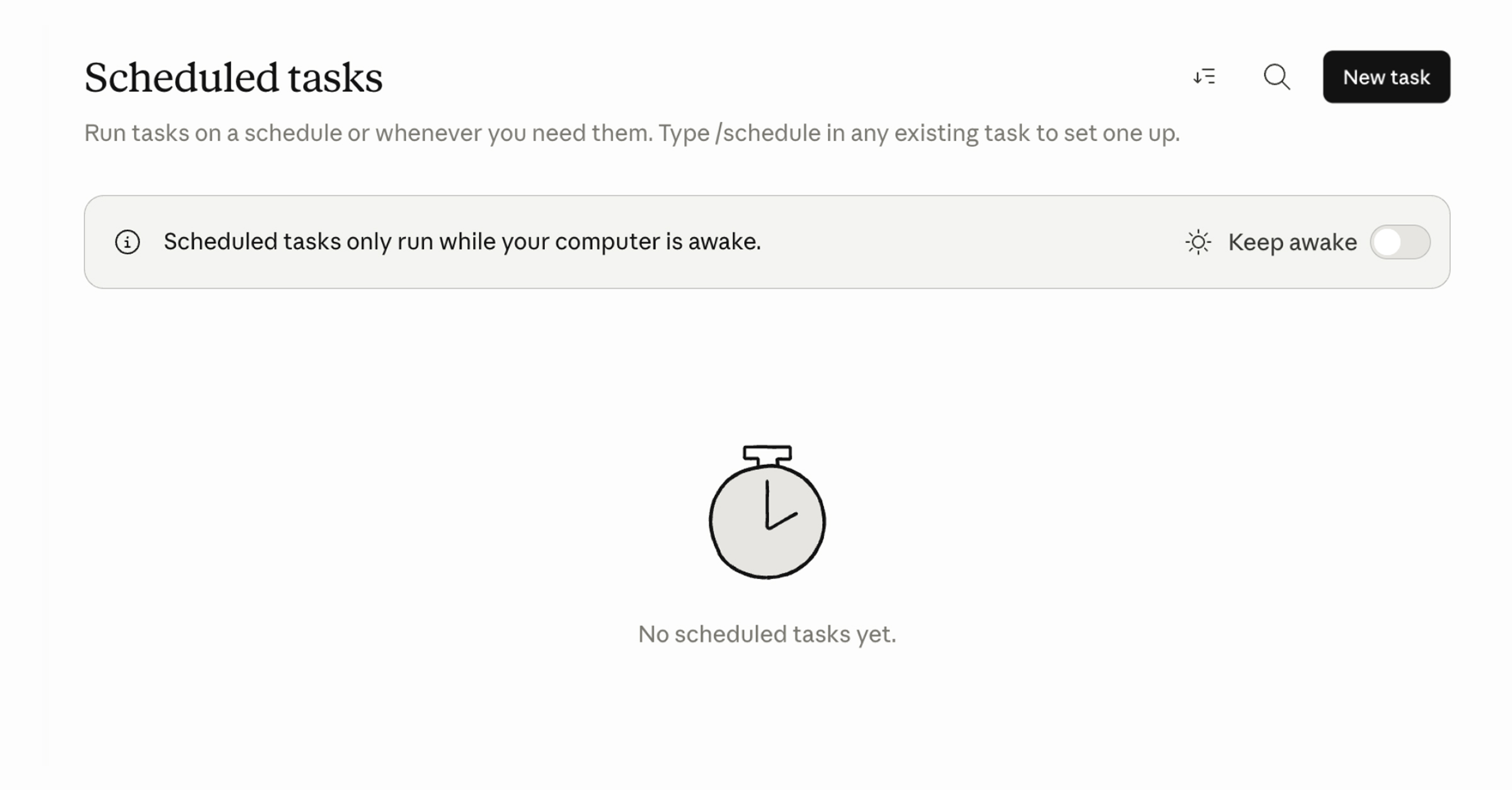
To create a task, just follow these steps:
- Open Cowork and click “+ New task” in the top-right corner.
- Enter your prompt, then click "Let's go" to start the task.
- This launches a Skill to create a scheduled task that can be run on demand or automatically.
- Add any other required details about the task you’re trying to create and send the message.
Claude may ask you questions before creating the scheduled task. Once Claude has all the necessary information, it will output the name of the task it’s creating, the schedule it will follow, and what the task actually does.
Read on for some sample prompts you can use to automate your CS workflows.
5 Claude Cowork Workflows Every CSM Should Build
Still with us? The above is all the prep work you need. Now it’s a matter of giving Claude Cowork access to that context to speed up your day-to-day.
Each workflow below pairs a CS task with the files Claude needs, a prompt template you can copy, and a note on what the output looks like. None of these will write themselves perfectly on the first try; Claude's drafts always need your judgment, especially around the relationships only you understand.
- Call prep and follow-up
- Account health analysis
- QBR prep
- Renewal risk assessments
- Onboarding
Use Claude Cowork for Call Prep and Follow-up
Hopping on a call with your biggest account? Let Claude handle the prep. Feed Claude the customer's last 2–3 call transcripts, recent product usage notes (if available), and your CRM notes.
Prompt Template:
Read the attached transcripts for [Account Name]. Before my call on [date], I want a 1-page brief covering: (1) where we left things last time, (2) open items the customer is waiting on, (3) any signals – product, sentiment, org changes – worth raising, (4) three questions I should ask.
After the call, switch to follow-up mode:
Here's the transcript from today's call. Draft (a) internal notes for my CRM, (b) a customer-facing recap email matching my voice, and (c) two coaching observations on what I could have handled better.
Did you know that some Customer Success Platforms have AI functionality like this baked in? Vitally includes an AI-powered note taker to record calls and turn audio into transcripts, and an AI Copilot you can ask questions like the above to get answers that guide you before and after calls.
Use Claude Cowork for Account Health Analysis
How are you currently tracking customer health? In spreadsheets?
Let’s automate it. Give Claude a CSV of product usage data, support ticket history, NPS or survey responses, and any health score export from your CS platform. It helps to think through the specific risks you’ve seen lead to increased churn, as well as the positive signals.
Prompt Template:
Across the attached files for [Account Name], identify the three strongest signals that this account is healthy and the three strongest signals it's at risk. Cite specific data points. Then suggest one outreach action for each risk signal.
The key to effective health scores is data: you need lots of it and from a variety of sources. This is where a Customer Success Platform with built-in health score functionality can help by centralizing your data and teasing out insights. If you're stitching together exports, there’s always a risk that Claude will miss context and flag mismatches.
Use Claude Cowork for QBR Prep
If you’re spending hours pulling data and creating decks for every QBR meeting, it’s time to stop. Give Claude your latest deck, current usage data, recent renewal/expansion history, and any goals the customer set at the last review.
Prompt Template:
Using the attached materials, draft a QBR outline for [Account Name]. Structure: (1) value delivered since last QBR, (2) progress against goals they set, (3) three areas of opportunity, (4) proposed next-quarter goals, (5) two strategic asks. Keep slide-level, not paragraph-level.
Cowork can produce real PowerPoint files, so you can ask for the deliverable as a .pptx if you want to move straight into editing rather than copying from a doc. Check out our guide to using AI for QBRs for more prompt ideas.
Use Claude Cowork for Renewal Risk Assessment
Claude Cowork can be the ace up your sleeve in flagging renewal risks before they become a problem. All you need to do is provide Claude with the renewal date, ARR, the last 90 days of activity (calls, support volume, usage trend), executive sponsor changes, and any open issues.
Prompt Template:
I want to assess renewal risk for [Account Name], which renews in [X days] at [ARR]. Before you produce anything, ask me 3–5 clarifying questions about the relationship and recent dynamics. Then give me: (a) a risk rating with reasoning, (b) the top three actions to take in the next two weeks, (c) a draft talking-point doc for my Director.
Use Claude for Onboarding
Onboarding can be a revenue multiplier for your company, but only if you get it right. Set yourself and your new accounts up for success by feeding Claude the signed contract or order form, sales handoff notes, and your standard onboarding playbook, then move on to the next prompt.
Prompt Template:
Generate a 60-day onboarding plan for [Account Name] based on the attached handoff notes and our playbook. Tailor the milestones to their stated goals. Output as a checklist with owners (CSM, customer, technical) and target dates from a kickoff date of [date].
Note: the more defined your onboarding playbook is, the better these results will be. Loose onboarding instructions without a clear understanding of the time-to-value will lead to lower-quality outputs.
For more on what to capture during onboarding and handoff, see onboarding templates for CS teams and sales-to-CS handoff best practices.
Prompt Engineering Tips for CS-Specific Cowork Sessions
Most prompt engineering advice online was written for marketers and developers.
CS work is relational and judgment-heavy, and the prompts that work best reflect that. A few patterns are worth memorizing.
- Lead with task plus success criteria: Define success from the get-go. The more specific you are about what you want from each task, the better aligned Claude’s outputs will be.
- Ask Claude to interview you first: The data tells you what's happening; only you know why. By integrating yourself and the valuable real-world context you have into the process, you’ll get a much better output.
- Dictate when speed matters: Voice dictation captures the messy, useful detail ("the CFO seemed checked out, he kept looking at his phone") that you'd skip if you had to type it.
- Treat it as a draft, not a verdict: The single biggest mistake CSMs make with Cowork is sending its output without editing. Read every customer-facing output out loud before you send it. The places you stumble are the places to rewrite.
Where Claude Cowork Fits Alongside Your CS Platform
Cowork is a powerful tool for thinking and drafting. It's not a Customer Success Platform, and treating it like one will get you in trouble fast.
Claude does a great job at the following tasks:
- Synthesizing messy inputs into a structured output
- Drafting long-form deliverables (memos, plans, decks)
- Helping you think through a specific account or scenario
- Automating the repetitive parts of prep and follow-up.
Claude Cowork is where you go to spot trends in large datasets or automate predictable tasks.
But Claude Cowork doesn’t connect to your live customer data, give your team a shared view of health and risk, trigger automated playbooks when health drops, surface accounts you should be paying attention to, or replace the system of record.
That’s where you need a fully featured Customer Success Platform.
A CS platform like Vitally pulls product, support, and revenue data into one place in real time and runs the workflows that keep accounts healthy at scale.
Your CS platform is the operating system for your book of business, while Cowork is a working surface where you bring focused tasks. The two complement each other. Trying to use Cowork as a system of record is like trying to run your team's account list out of a Notes app – it works for a minute, then breaks.
Want to see how the platform side fits together? Take a platform tour to see how Vitally brings CS data together.
Power Your CS Workflows With These 23 Customer Success AI Prompts
With the right blend of AI and human-driven workflows, you can be an AI rockstar and save hours of time in the process.
And AI can do so much more than spot renewal risks or create QBR decks. We compiled our top 23 AI prompts for Customer Success in the AI Prompt Book linked below. Save your favorite prompts, create a custom GPT, and see how much time you can save across all of your accounts.
Click the button below to get your free copy.
Table of Contents
Request a Demo

Request a Demo
Request a Demo